Restore a purchase on a new device
On your new iPhone or iPad, open the App Store, tap the account icon in the upper-right corner, go to Purchased, find Shadowrocket and tap the cloud download icon. If the system first shows Apps or My Apps, look for your purchase there. If a Not on this device filter is available, you can use it to find the app. Sign in with the Apple Account used for the original purchase; if the restore conditions are met, you will not need to pay again.
A purchase made with the same Apple Account can be used on both iPhone and iPad. If search results still show a price, first check whether Media & Purchases is signed in to the original account. Then check whether the purchase is hidden, whether the current storefront offers the app, and whether the new device meets compatibility requirements. Confirm the purchase record before deciding to pay again.
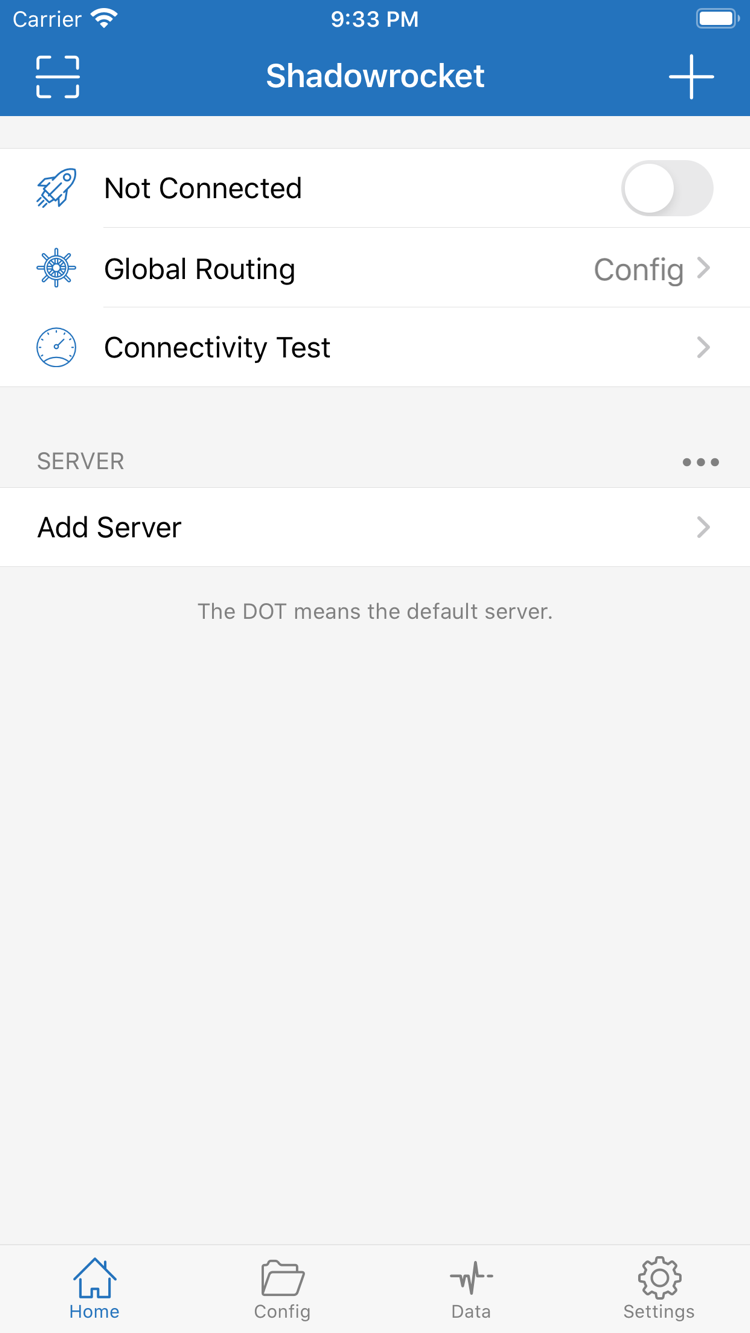
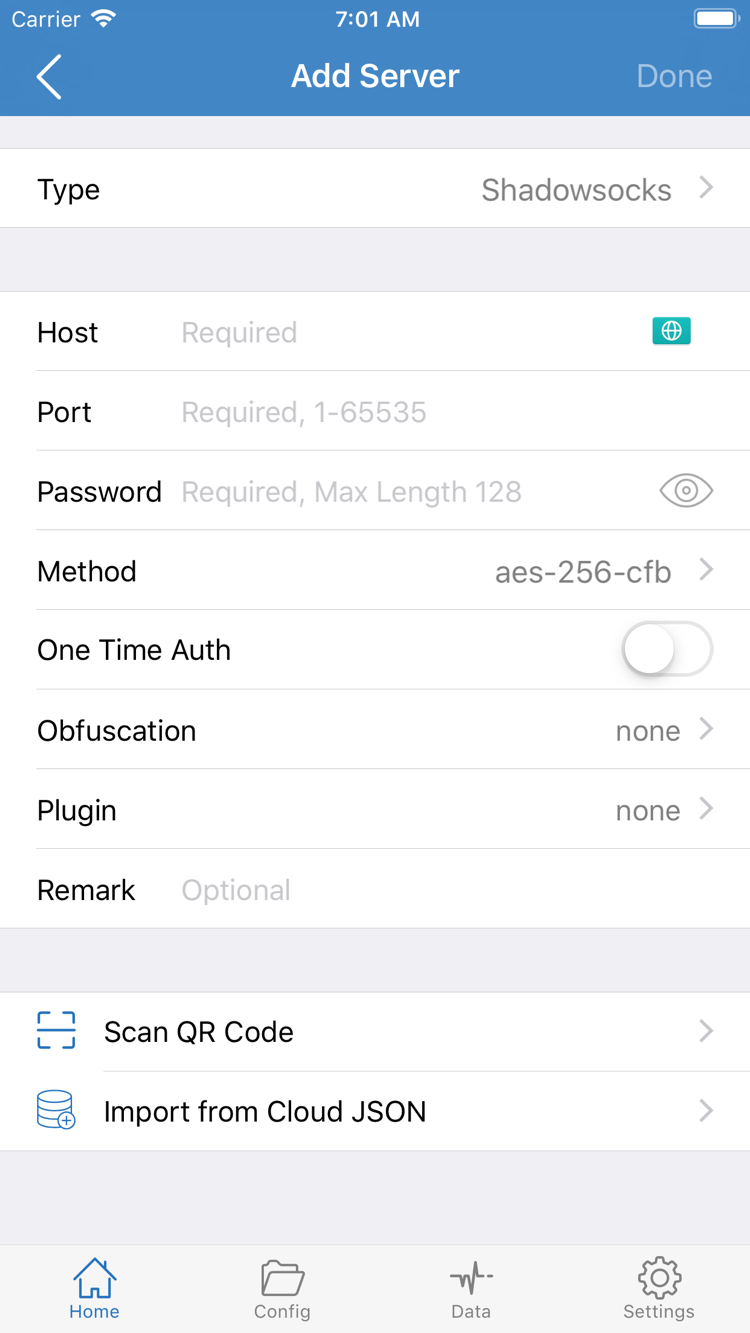
The App Store restores the app, not all device settings. Before switching devices, keep any server details and configuration you still use and need to transfer; get subscriptions from your service provider. On the new device, follow Getting Started to import or enter them again. First check the mode used by Global Routing, then use Connectivity Test to verify an existing connection. Do not share subscription links, passwords or complete QR codes in support screenshots.
When switching to a new Mac, Windows, Android or Linux device, return to Downloads for all platforms and get the package for the new device's architecture. Even devices with the same operating system may use different processors or distributions. For routine updates, check the App Store for updates on iPhone / iPad; on other platforms, download a new package that matches your device from this page.