Official Shadowrocket Manual · iPhone / iPad
Shadowrocket Setup Guide
Start by adding an existing connection, then choose a routing mode, turn on the connection, and check whether access works as expected. These five steps cover the initial setup.
01 Add
Add Server and Subscribe: Add an Existing Connection
First, identify which details you have. A subscription link imports a set of servers maintained by your service provider. A single server's address, port, and authentication details create a separate entry. Use either method. Don't paste a full subscription link into Host; that field accepts only the hostname or address of a single server.
Existing Subscription: Add It from Config
Open Config, go to Subscribe, paste the full link from your service provider, and save. If the copied text includes notes, line breaks, or extra spaces, remove them and keep the link and its query parameters intact. Return to Home and check whether the corresponding group appears under SERVER. Expand it and select the entry you want to connect to. If you see the subscription name but no entries after expanding it, first confirm that the subscription updated successfully before continuing.
Existing Single Server: Add It from Add Server
On Home, open Add Server. Select Type based on the details from your service provider, then fill in Host, Port, and the authentication fields required for that type. Password and Method in the screenshot are fields shown for the selected type; not every protocol uses them. If your provider supplied a server QR code, use Scan QR Code. After importing, verify the Type and address before saving.
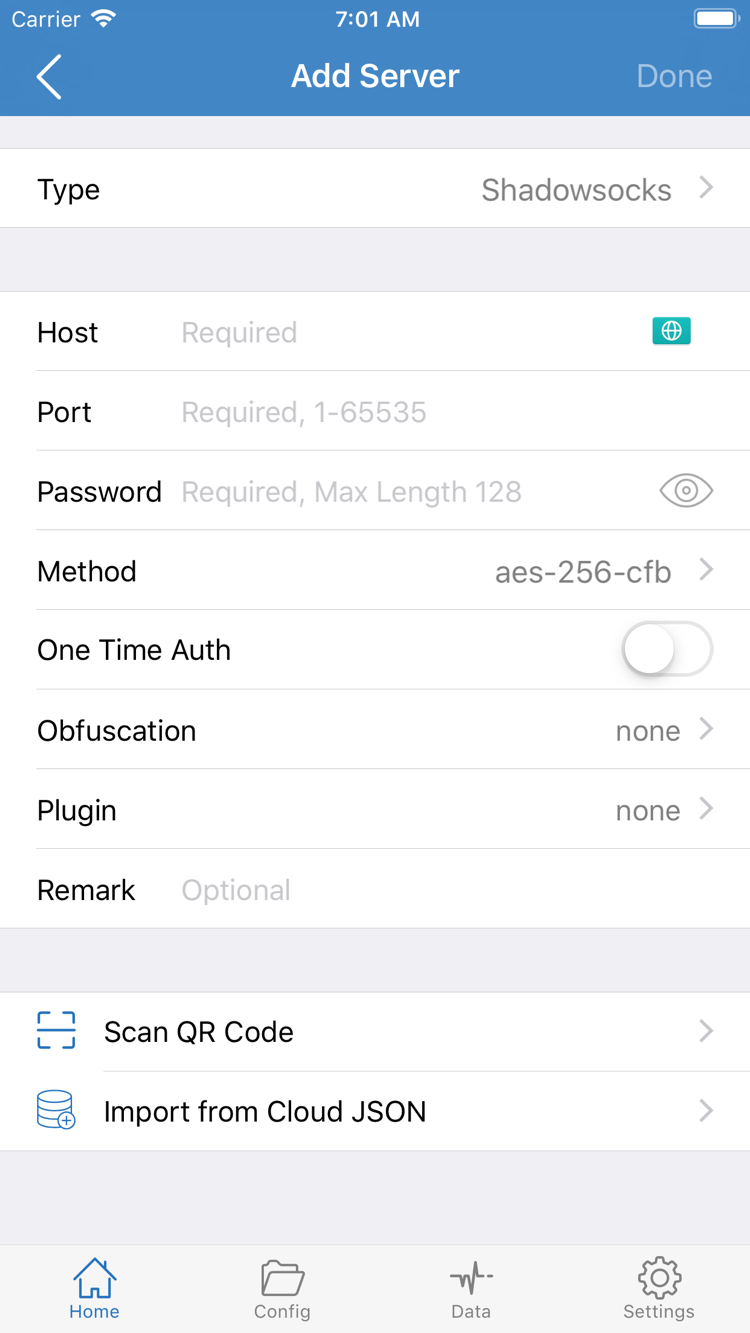
For example, if your provider specifies VMess, select the matching Type and enter each detail they provide. Don't guess which fields to use based on a screenshot showing a different protocol. After saving, return to Home and confirm that the selected entry is the one you just added before choosing a routing mode. Subscription links, QR codes, and authentication fields may contain credentials, so keep them out of screenshots when documenting an issue.
02 Route
Global Routing: Choose a Routing Mode
Return to Home and open Global Routing. The previous step selected which server to use; this step determines whether requests are sent through it. To test rule-based routing, choose Config (Config). The other two modes are useful for comparison while troubleshooting.
- Config (Config): Handles requests according to the rules in the active configuration. A matching rule may use policies such as
PROXY,DIRECT, orREJECT. - Proxy (Proxy): Sends requests handled by the client through the selected proxy. Use this mode to check whether a destination is accessible through the proxy.
- Direct (Direct): Sends requests handled by the client directly, without using the selected proxy. Switching to this mode does not turn off the switch at the top of Home.
Config under Global Routing is a mode; the Config tab at the bottom is where you manage configurations. After choosing a mode, open Config and check which file is active. To inspect its details, open Rule and find the rule for your destination. Importing a subscription does not replace this check: the server list determines which connections are available, while the configuration determines how requests are handled in rule-based mode.
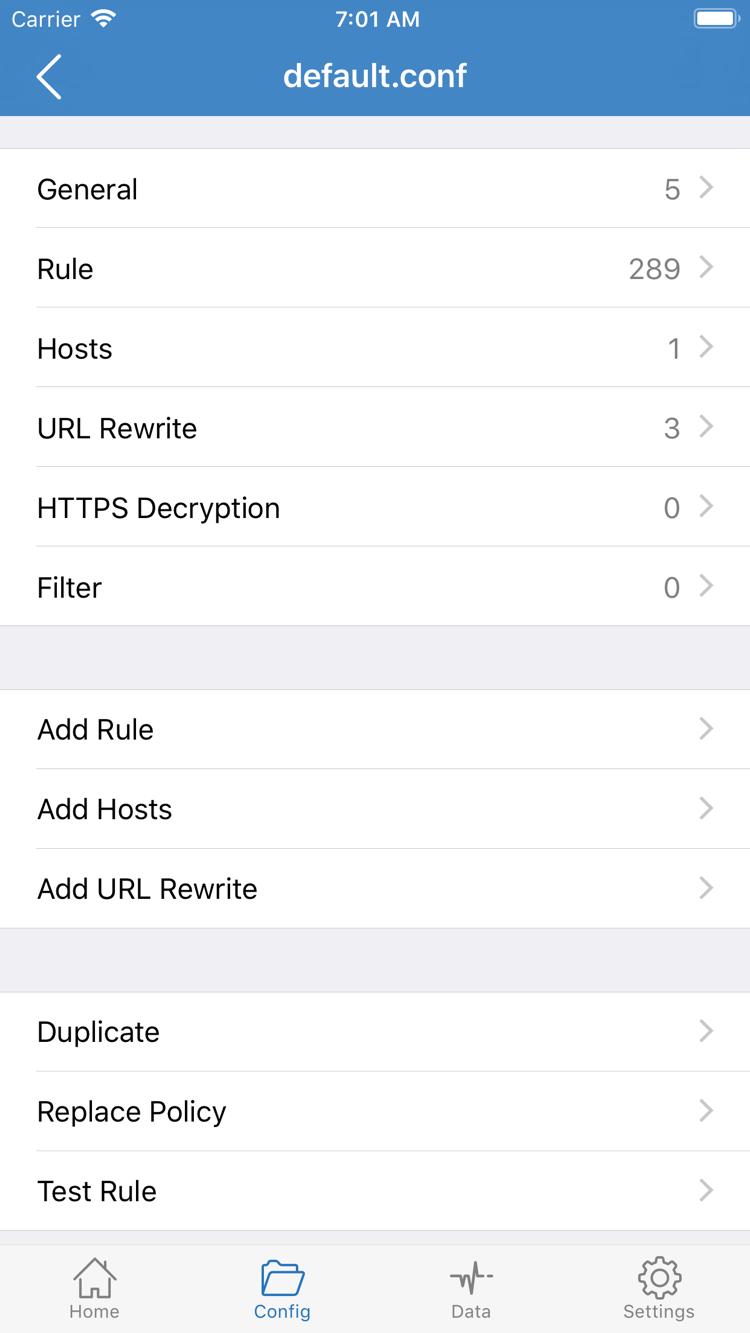
You don't need to edit the configuration before connecting for the first time. Find a rule you recognize and note its destination and policy so you can test it later. If several rules might match the same destination, check for broader rules earlier in the list, then see whether the request falls through to FINAL. See the protocols and rules glossary for the difference between rule keywords and policies.
03 Connect
Home: Turn On the Connection
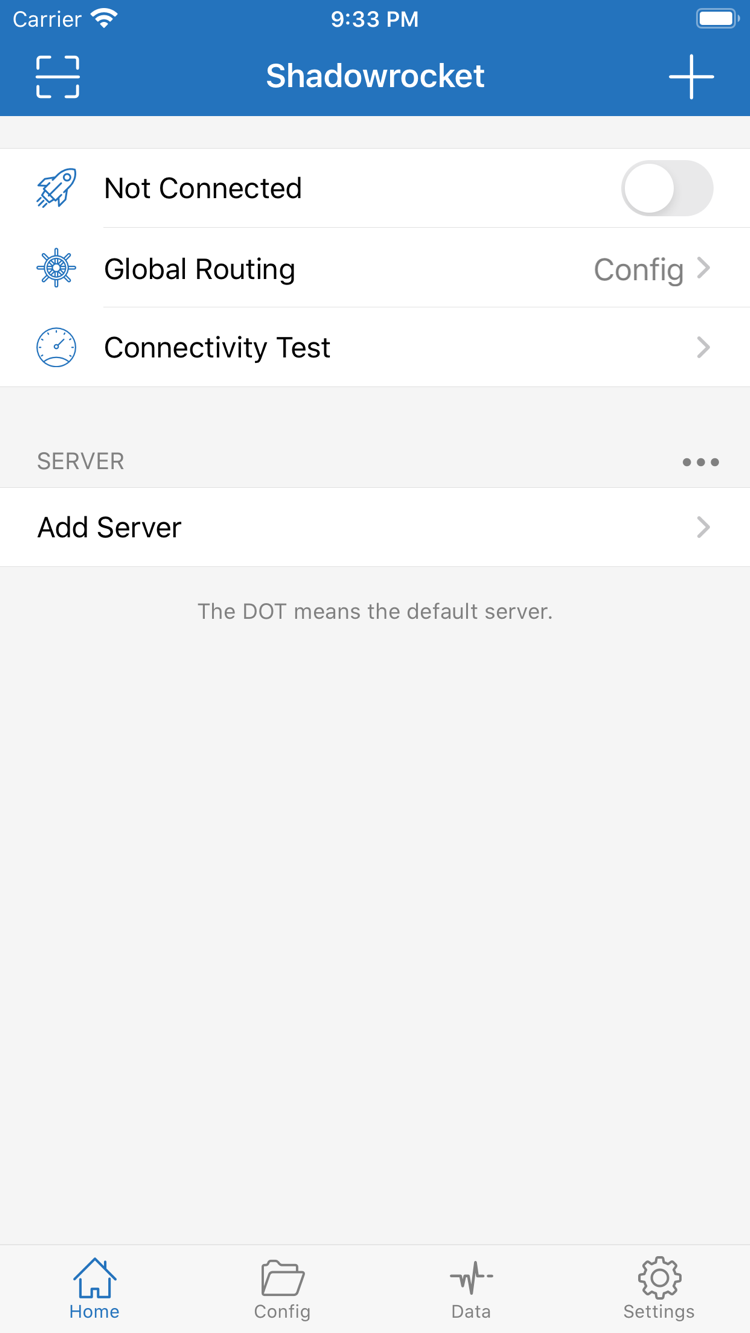
Return to Home. Check that the right entry is selected under SERVER and that Global Routing is still set to the mode you chose. Turn on the switch labeled Not Connected at the top. The first time you do this, the system may ask to let Shadowrocket add a VPN configuration. Verify the app name, approve the prompt, complete any authentication requested by the system, and return to Home.
If you canceled the authorization prompt, the switch may have turned off. Start the connection again from Home and respond to the system prompt; you don't need to delete the subscription you already added. If your device is managed by your workplace or school and the system won't allow a configuration to be added, check with the device administrator instead of removing management settings.
If the switch stays on and no longer says Not Connected, the connection is enabled on your device. This does not confirm that the remote server is available or that a request was routed as expected. Keep the server, mode, and network unchanged, and continue to the next step. If the switch turns off immediately, note the exact prompt and go to Troubleshoot Common Issues.
04 Test
Connectivity Test: Check Your Connection and Routing
On Home, run Connectivity Test and check whether the selected server returns a result. If the list contains multiple entries, make sure you don't mistake another entry's result for the one from your current connection. Results reflect the current network and test method only. A latency reading doesn't mean every site is accessible, and a lower number doesn't guarantee faster page loads.
Next, test actual access. Keep the current network and configuration unchanged. Choose one domain expected to use PROXY and another expected to use DIRECT, then reload each in a browser. Use pages that you know will make new requests; don't rely on tabs that were already loaded. If the configuration includes a REJECT rule, you can also test an existing block rule. Don't treat an expected block as a connection failure.
A page loading successfully confirms only that the visit worked; it doesn't show whether the request used a proxy or went direct. To check the route, find the hostname you just visited in the available request log and compare it with the active rules and policies. A page may load images, scripts, and other resources from different domains, so the main domain in the address bar may not be the one with the failed request. If the main page loads but some content doesn't, check the domain for the failed resource first.
If only one destination behaves unexpectedly, temporarily switch Global Routing from Config (Config) to Proxy (Proxy) and test the same destination again. If it works in Proxy mode but not Config mode, check the matching conditions and rule order first. If neither works, check the server and network. Switch back to the original mode afterward so later requests don't keep using the test setting.
05 Troubleshoot
Settings: Troubleshoot by Symptom
Subscription saved, but no servers appear
Distinguish between a saved subscription and an updated list of entries. Return to Subscribe and update the relevant subscription, then expand its group on Home. If the update fails, check that the link is complete and your device has a working network connection. If the same link still returns an empty list or a format error, ask your service provider to confirm that the link is valid and supported by Shadowrocket. Don't repeatedly delete configuration files just because the group is empty.
The switch turns off, or the connection starts again on its own
If the switch turns off immediately, check whether the system allows VPN configurations and whether another VPN is taking over the connection. If the connection starts again after you turned it off manually, check On Demand in Settings and see whether the current network meets an existing automatic connection condition. You can temporarily disable your own on-demand rules while troubleshooting, then re-enable them after testing a manual connection.
Connected, but tests fail or some pages won't load
In Settings, check Test Method. Keep the method the same when retesting so you aren't comparing results from different methods. First verify the selected entry's Type, address, port, and authentication details. If the issue occurs only on a particular Wi-Fi or cellular network, keep the same entry and mode, switch networks, and test again. Note any differences.
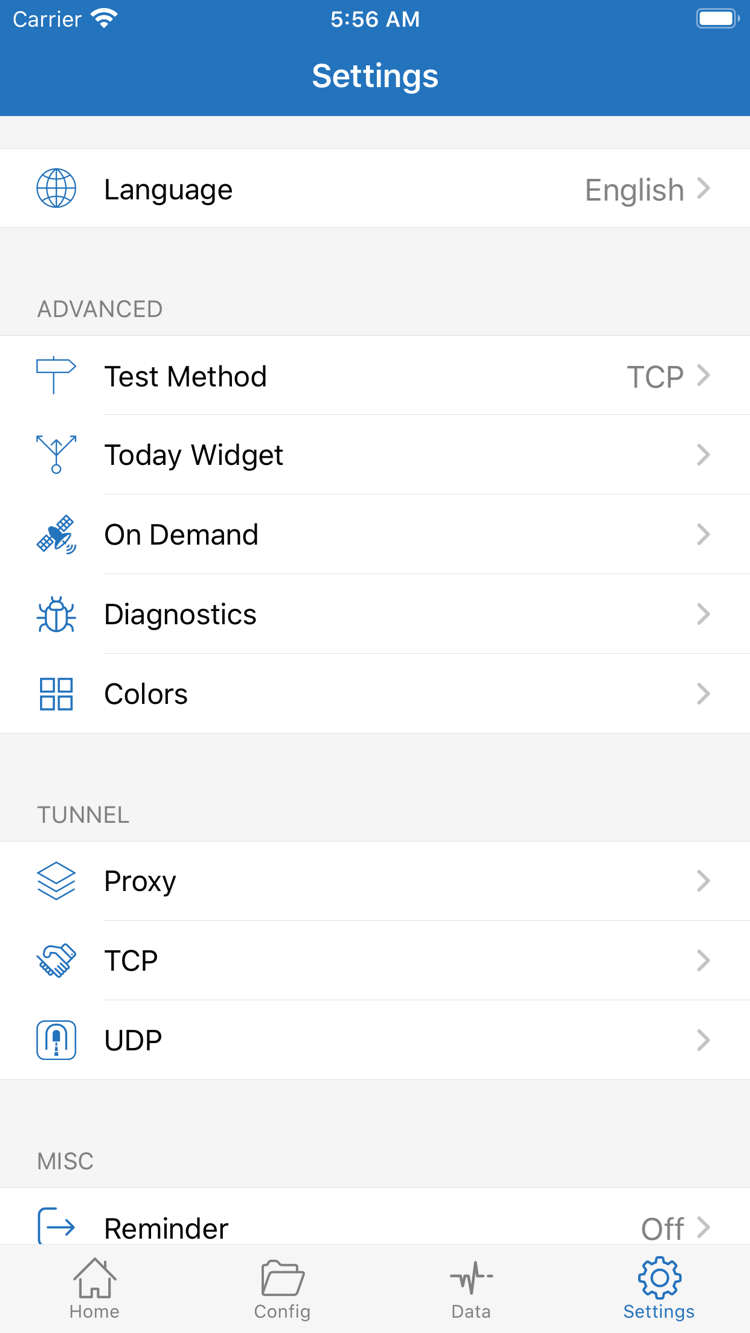
If the issue affects only specific domains, first check the rules as described in step four, then review the available diagnostic information under Diagnostics. Change one setting at a time and revisit the same destination on the same network. Leave settings unchanged if you're unsure what they do. When reporting an issue, note whether it happened during import, connection, or access, along with the mode, network type, and exact error message. Redact addresses and authentication details from screenshots. See Frequently Asked Questions for specific errors; for store availability, purchases, or restoring a purchase, see the Getting Started guide.